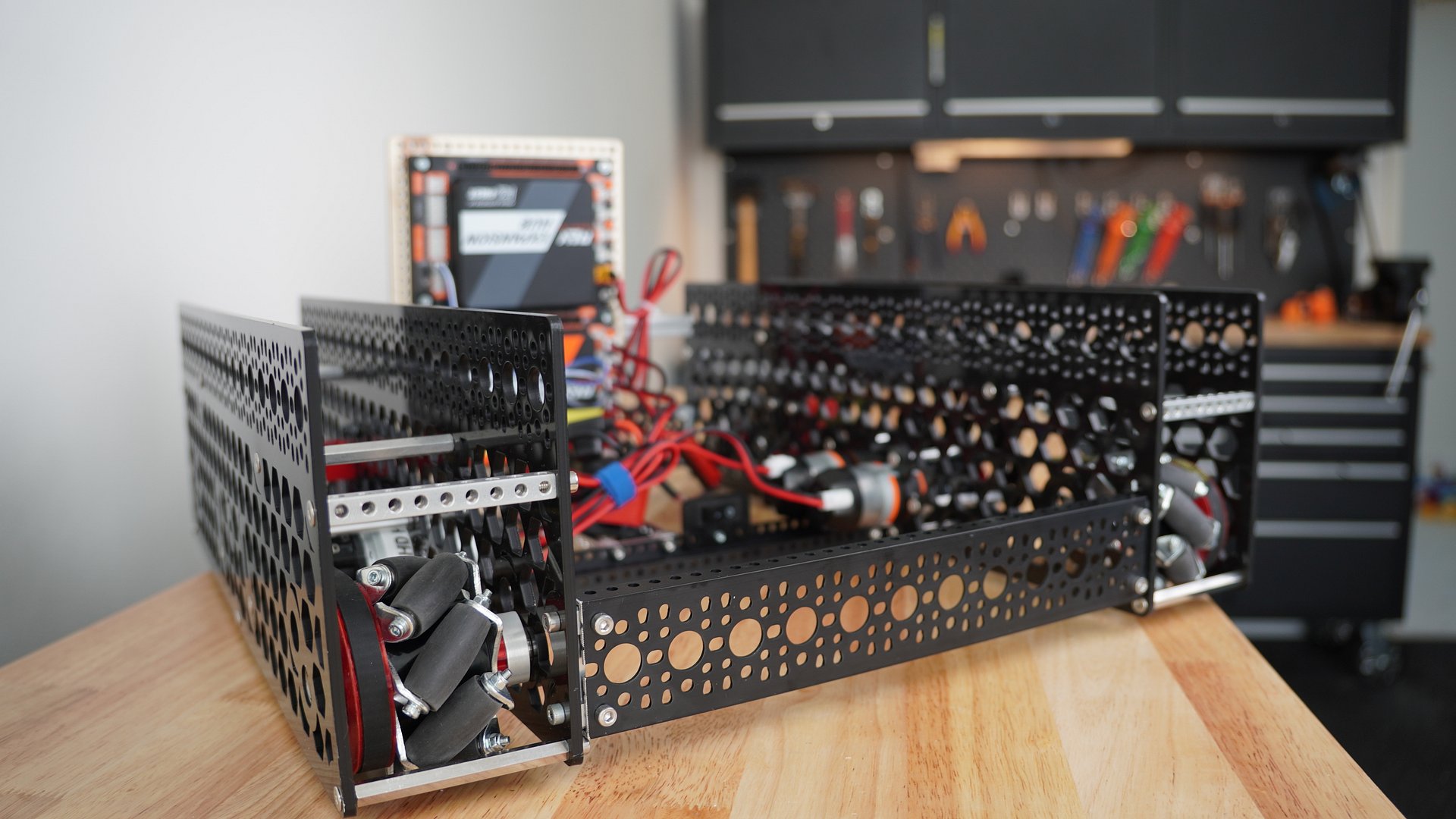
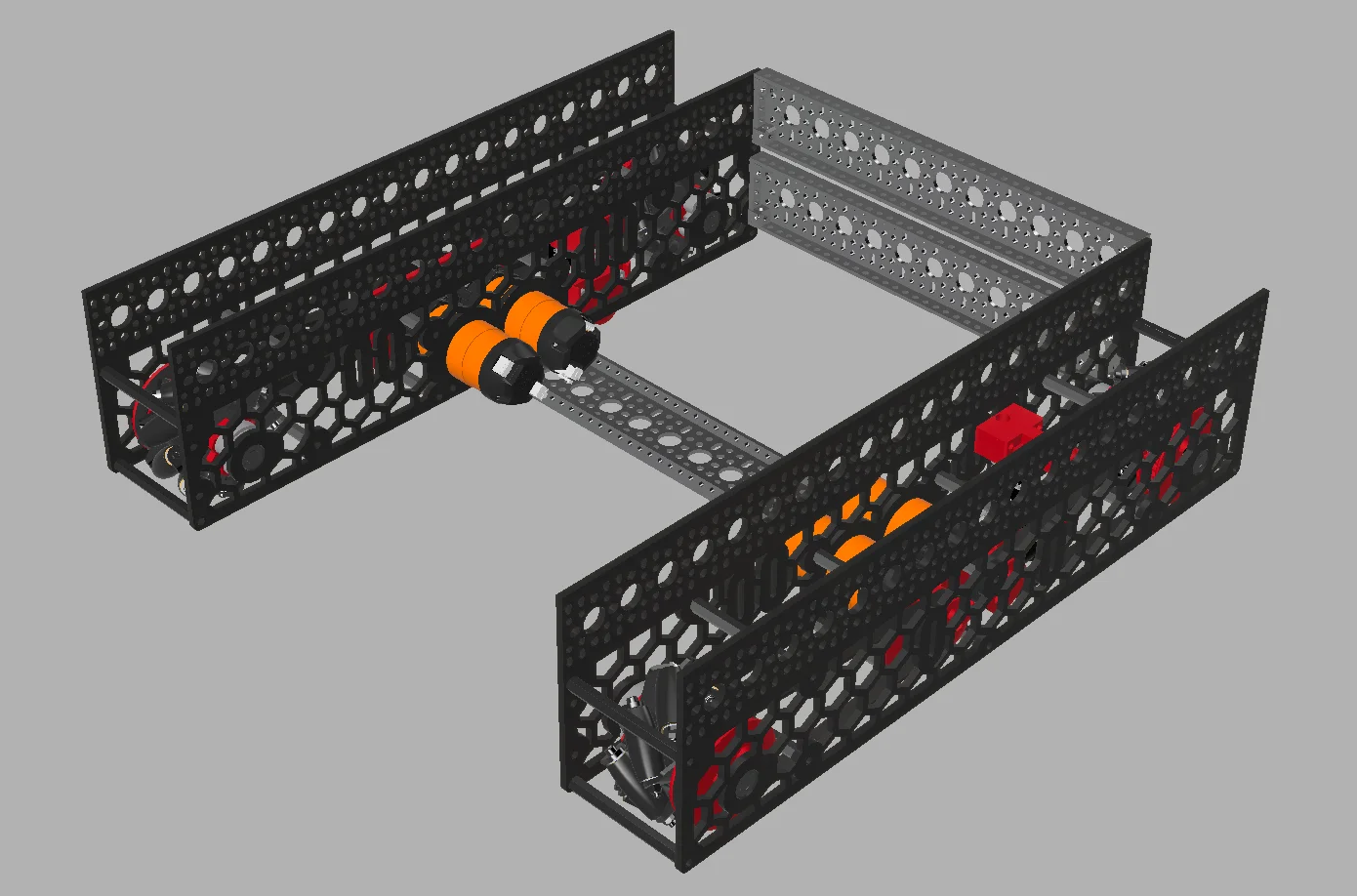
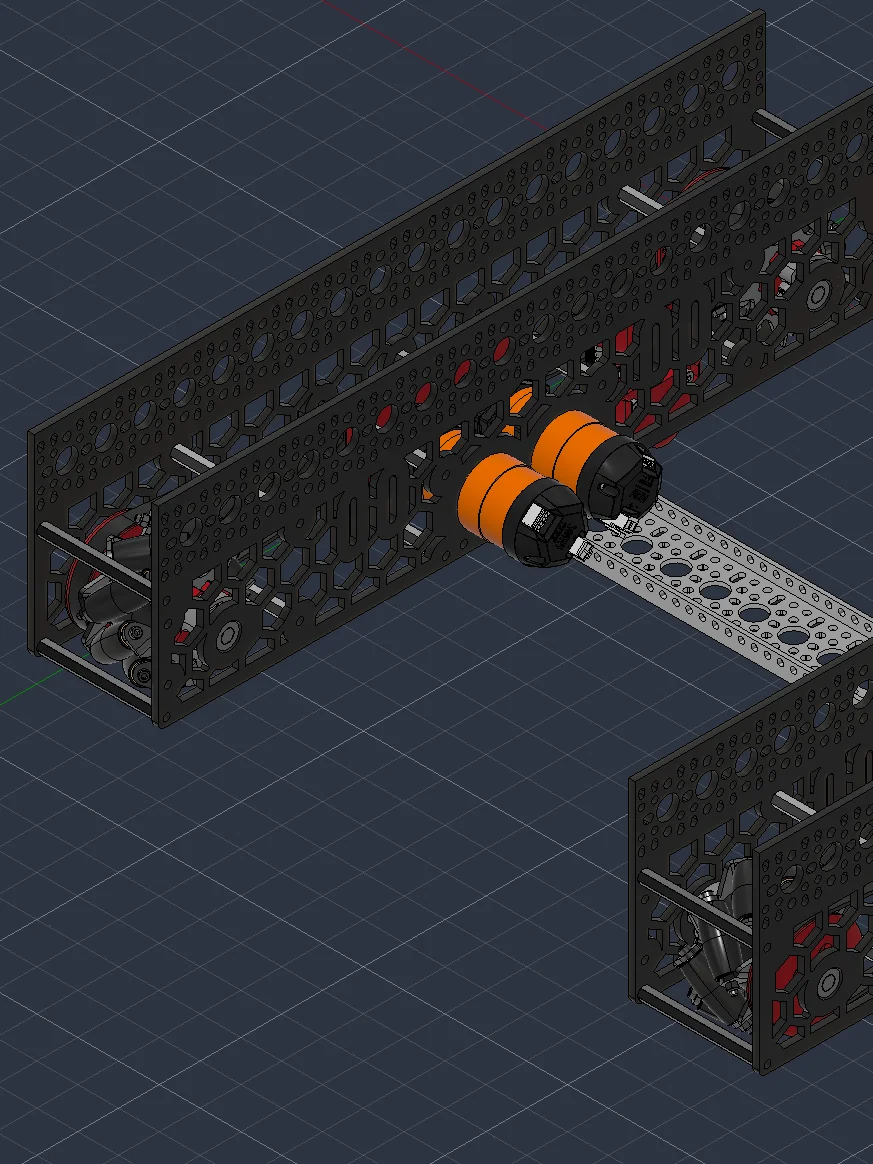
Parallel Plate Mecanum Drivetrain, 77mm (3") AndyMark BB Wheel Edition
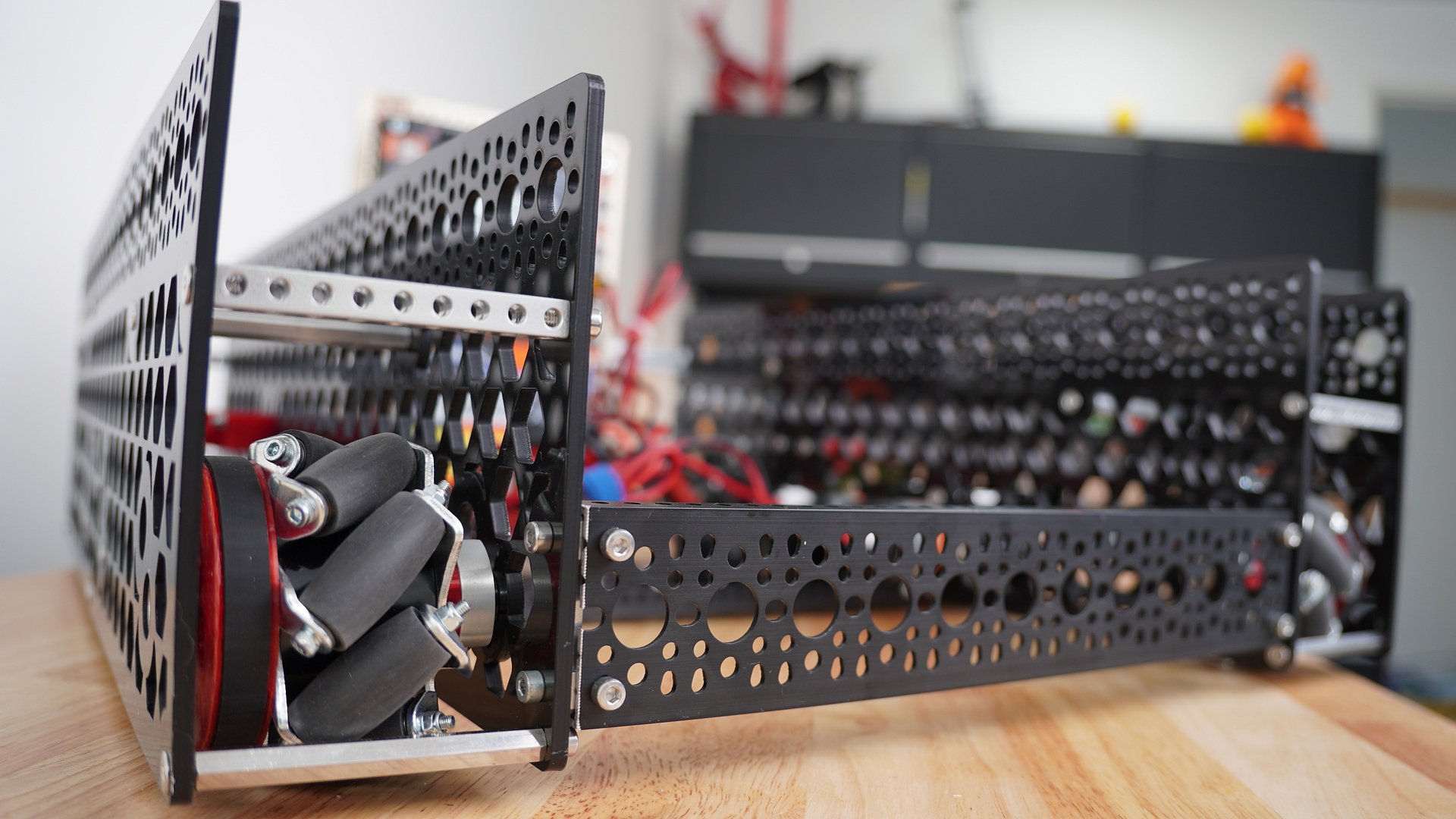
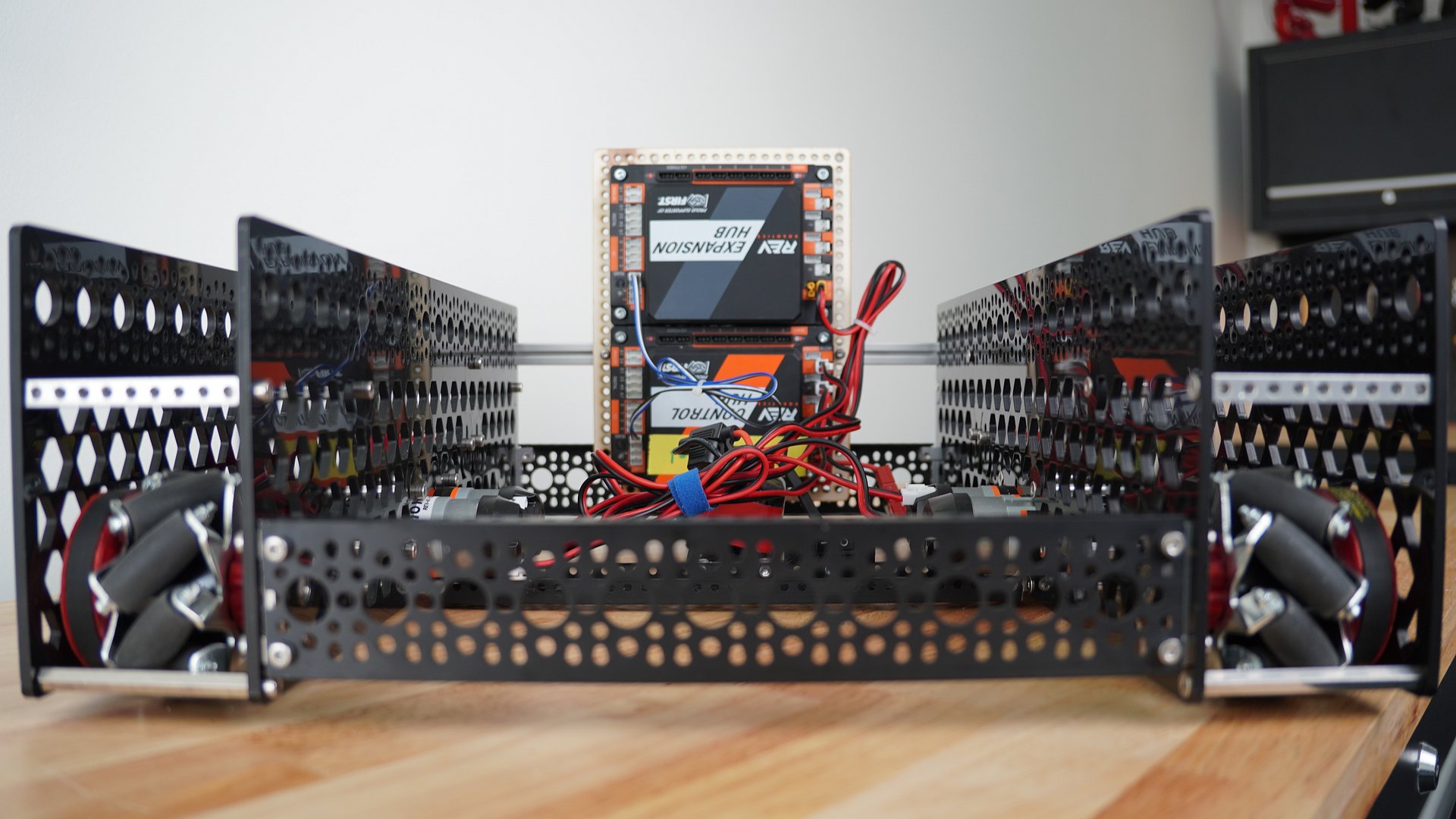
A parametric parallel plate drivetrain CAD, dialed in specifically for the 77mm (3") AndyMark ButterBoard mecanum wheel.
What's included:
- 1x STEP file, optimized plate geometry for 77mm AndyMark BB wheels
- Belt drive designed around 90T HTD5, easily modified for other tooth counts/pitches
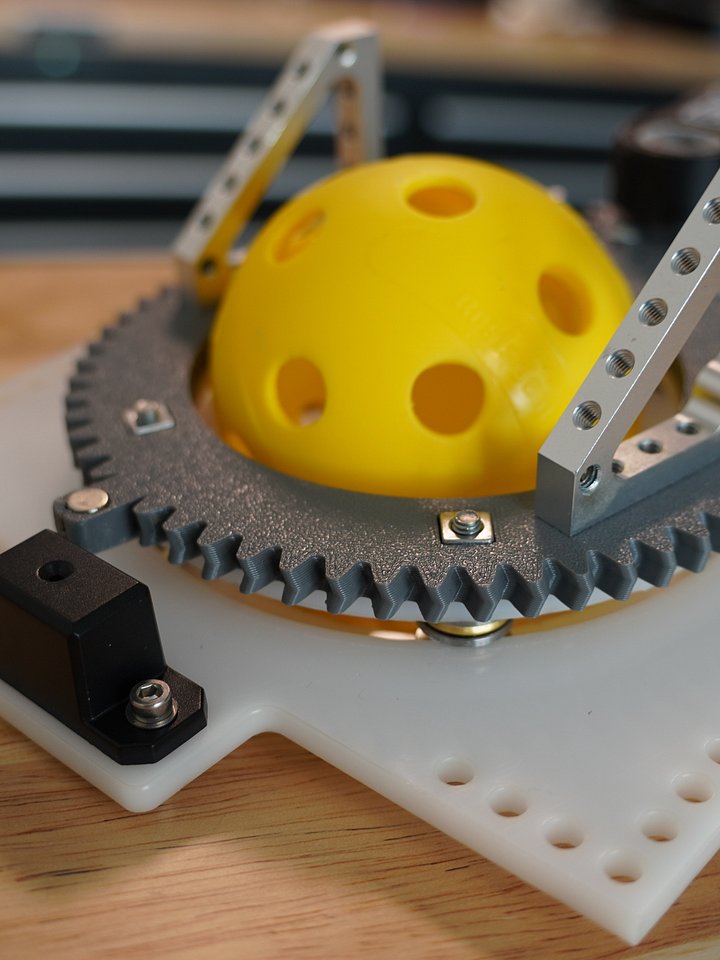
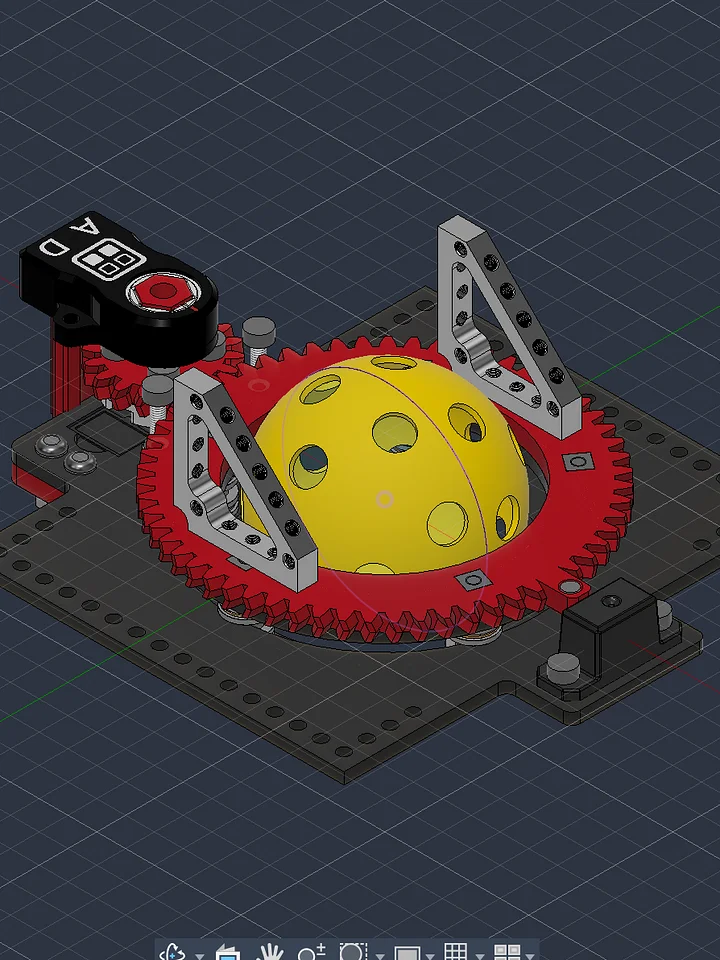
- Odometry pod cutouts integrated inside the plate footprint, no external pod mounting required
- Ideal RPM & Ground speed calculating spreadsheet for selecting the ideal motor for your robot's weight & speed goals
Design details:
- Lightened plate pattern for reduced weight without sacrificing rigidity
- Grid hole pattern cross-compatible with REV, goBILDA, and SWYFT parts, mix hardware without adapter plates
- M3/M4 hole sizing throughout
- Fully parametric: adjust track width, wheel spacing, and belt path in CAD without starting over
Best for: FTC teams standardized on the 77mm AndyMark BB wheel who want a tight, purpose fit plate with odometry built in.
Delivered as a STEP file, compatible with Fusion 360, SolidWorks, Onshape, and other major CAD platforms.
Also need flexibility across wheel brands/sizes? Check out the Universal 74-104mm edition of this drivetrain
Accessing STEP Files
STEP files are uploaded in a .zip folder. You must first unzip the folder in order to import the file into your CAD program of choice.
Autodesk Fusion 360
-
After unzipping the downloaded folder, open Fusion 360.
-
Click the "Show Data Panel" icon in the upper-left corner (it looks like a grid/waffle).
-
Navigate to your desired project and folder.
-
Click the "Upload" button.
-
Select the .step or .stp file from your computer and click "Open."
-
Once the upload is complete, the file will appear in your Data Panel, ready to be inserted into your design.
Onshape
-
After unzipping the downloaded folder, log in to your Onshape account.
-
From the "Documents" page, click the "Create" button and select "Import files...".
-
Alternatively, inside an existing document, click the "+" icon in the bottom-left corner and select "Import."
-
Select the .step or .stp file from your computer.
-
Choose your desired import options in the dialog box.
-
The imported file will appear as a new tab in your document.
SolidWorks
-
After unzipping the downloaded folder, open SolidWorks.
-
Go to "File" > "Open."
-
In the "Open" dialog box, change the file type to "STEP files (*.step, *.stp)."
-
Navigate to and select the STEP file you wish to import.
-
Click "Open."
-
SolidWorks may prompt you to run "Import Diagnostics" to check for and fix any potential issues with the imported geometry. It is recommended to do so.
3D Printing Tips
If the design includes 3D printed parts, I highly recommend you print the part out of PCTG. It has some of the highest impact resistance and non-catastrophic breaking for robot parts.
For Mechanical/structural parts, I recommend:
- 0.6mm Nozzles over 0.4mm. Wider nozzles produce stronger prints in shorter periods of time over thinner nozzles.
- Minimum 4 walls.
- 30-40% gyroid infill