6-Wheel Drop-Centre Drivetrain
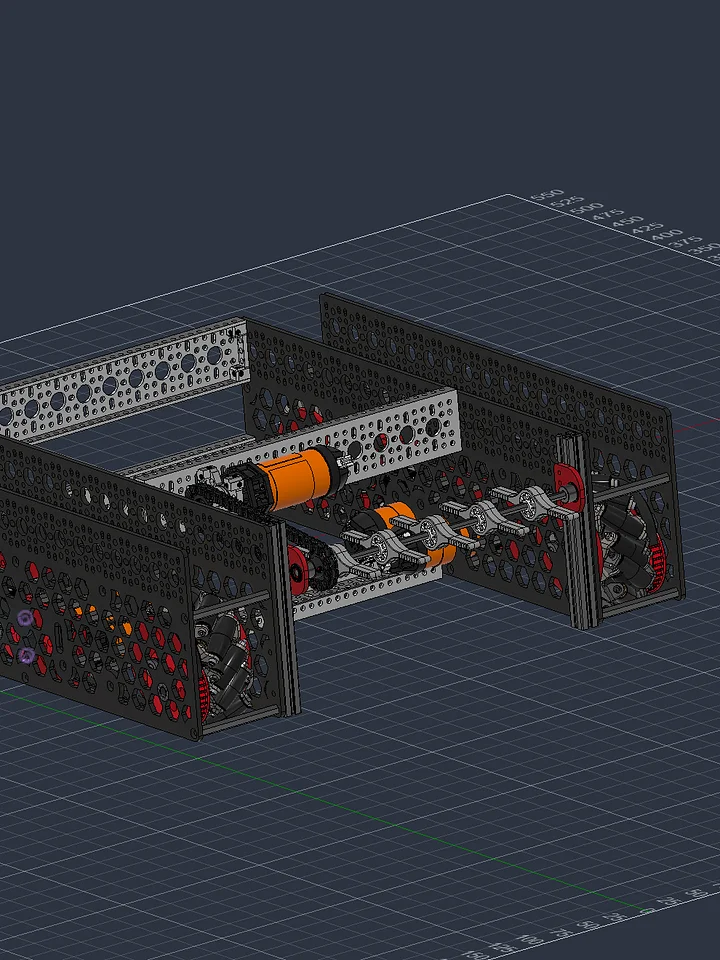
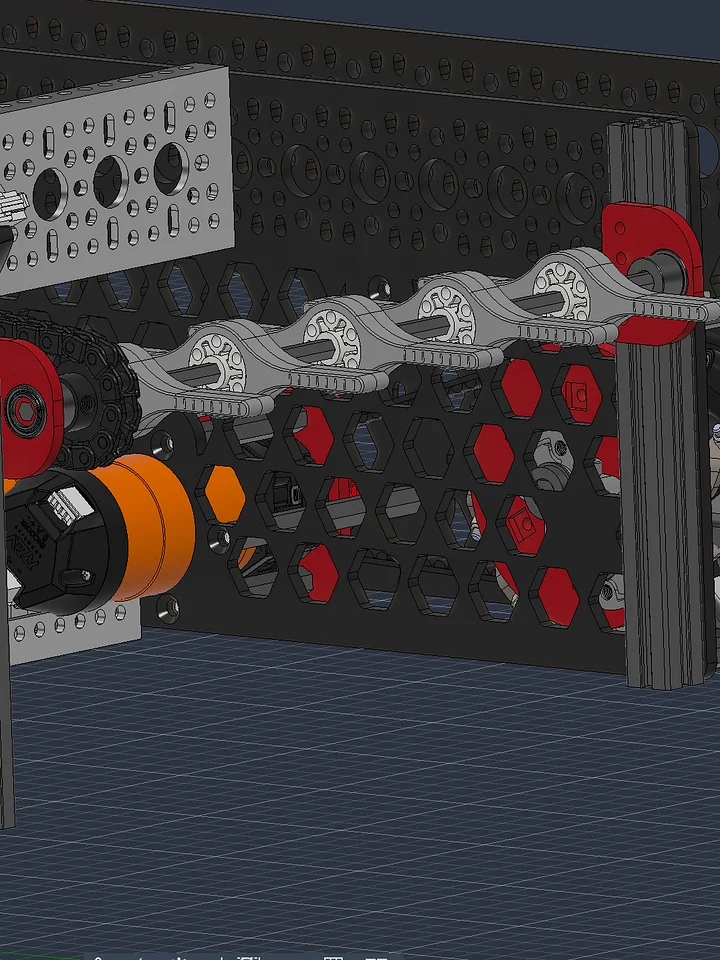
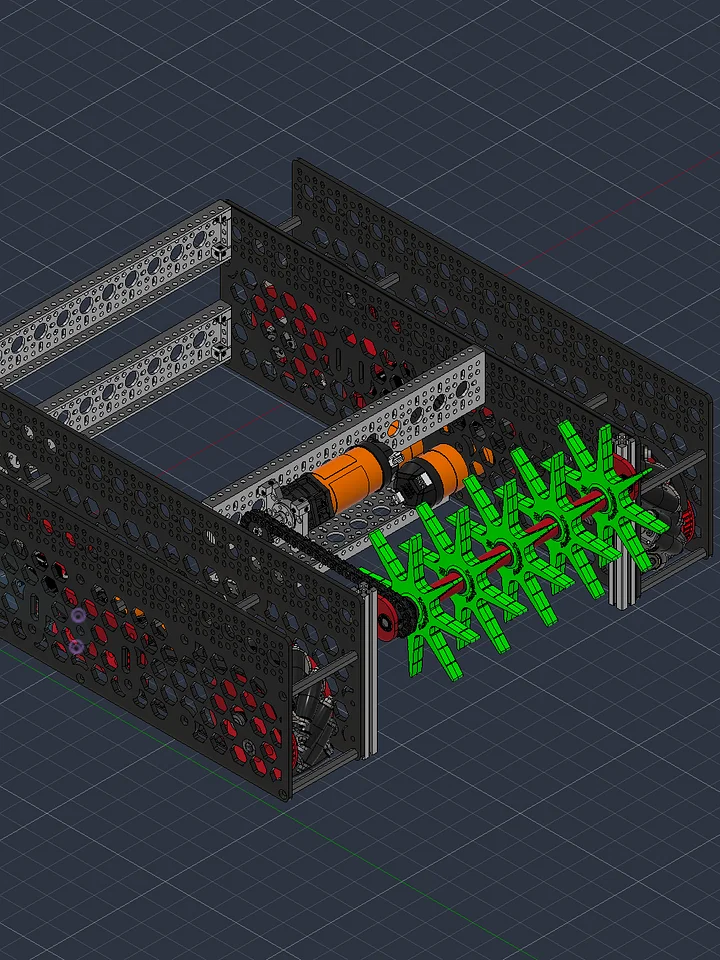
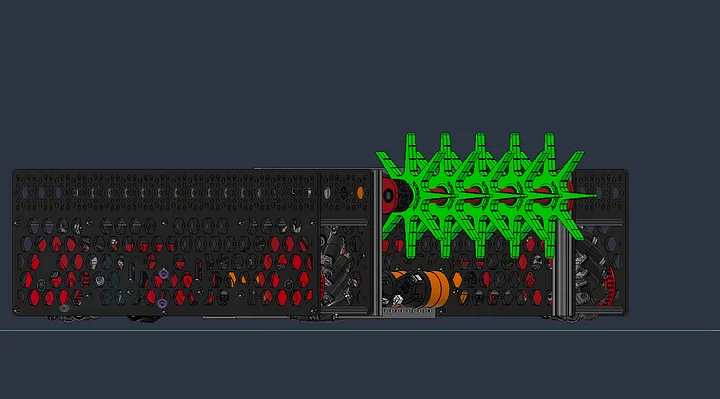
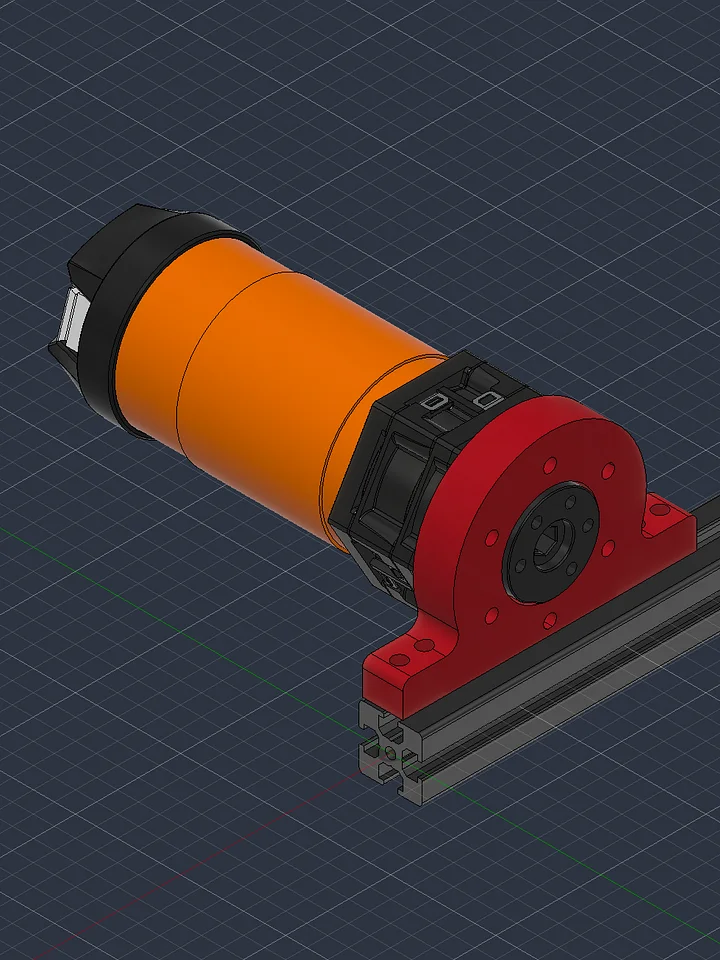
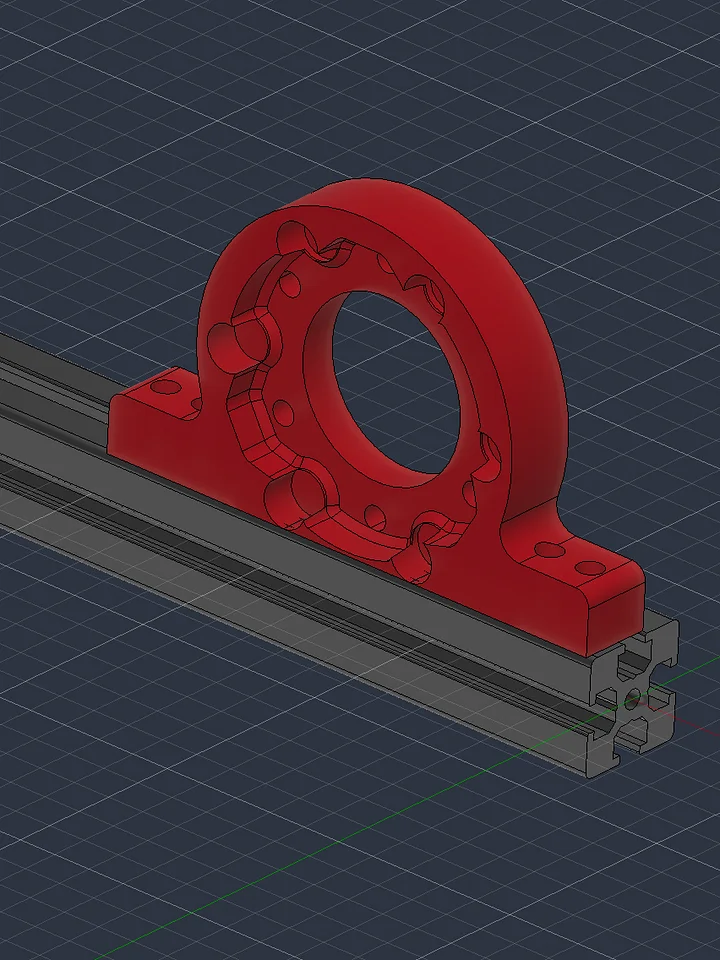
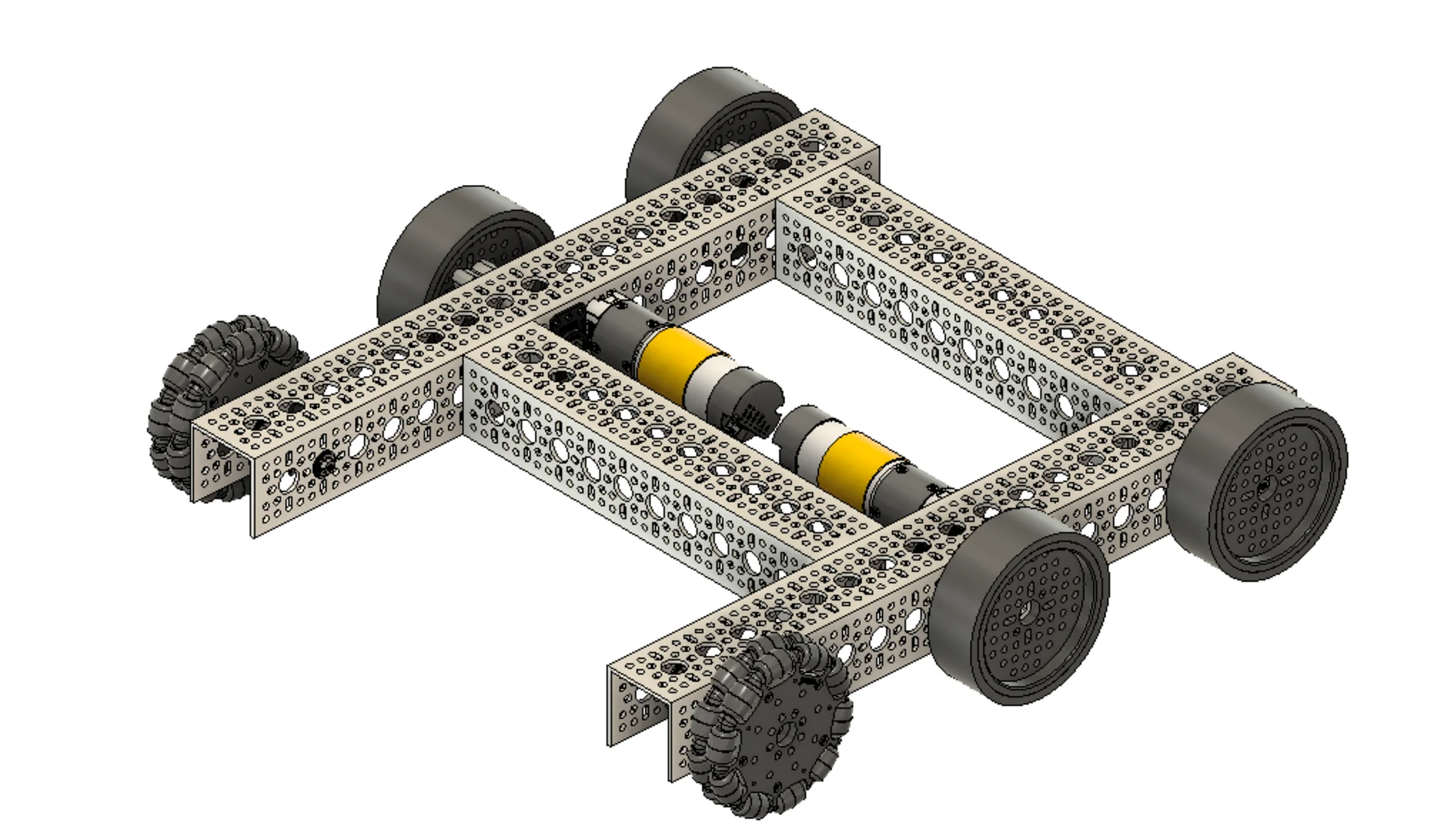
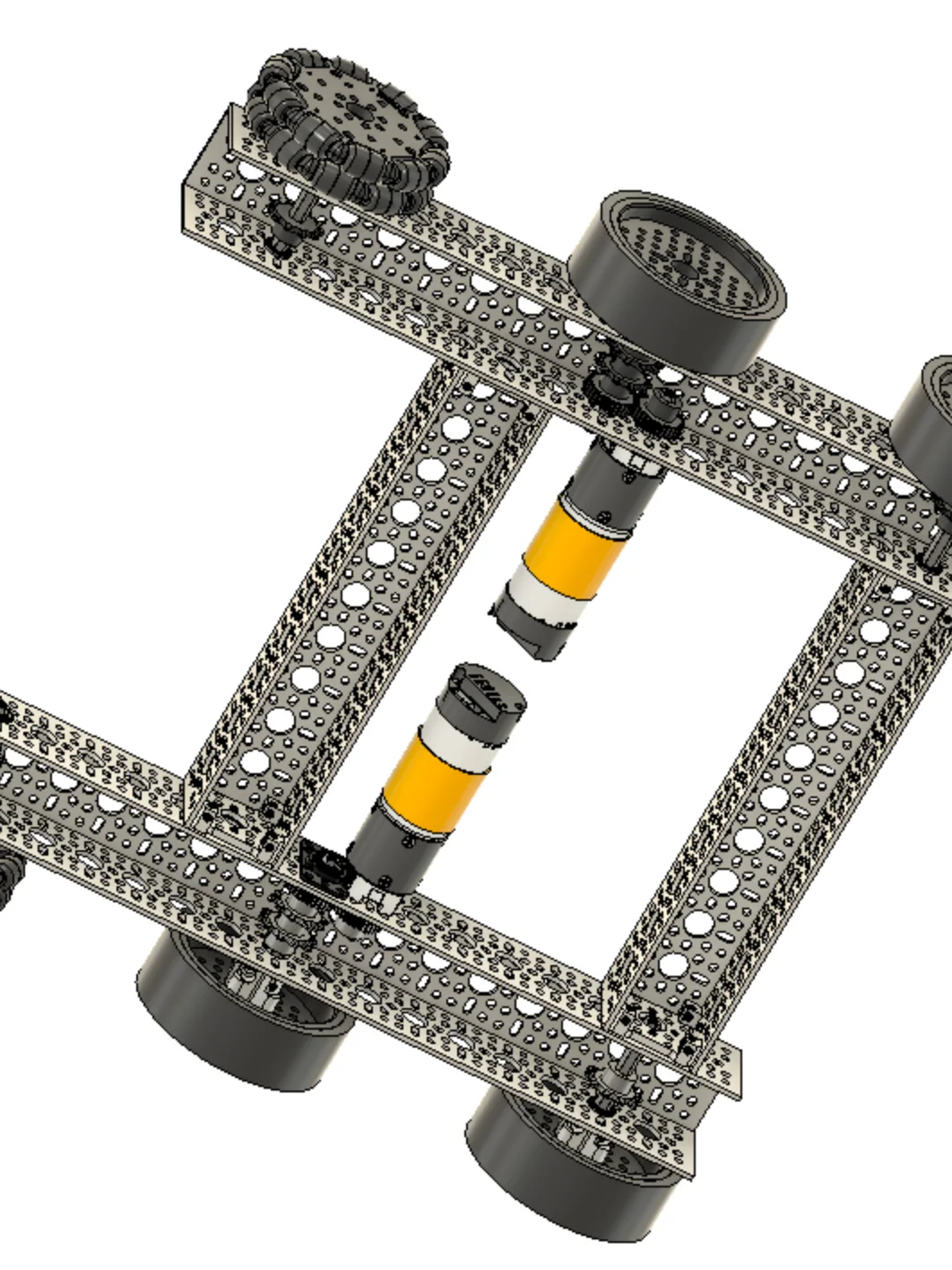
Here's a simple 6-wheel drop centre drivetrain CAD for you to take and develop further upon. The drop-centre plates have been modified to fit 3d printing tolerances better. I use this as a simple teaching chassis with my students to get them up and running.
The drop centre nature of this design will improve turning performance over a standard 6 wheel chassis.
Note: this is a simple starter design. I'd suggest you improve upon this by incorporating x4 motors, if you plan on using this in an FTC context.
Accessing STEP Files
STEP files are uploaded in a .zip folder. You must first unzip the folder in order to import the file into your CAD program of choice.
Autodesk Fusion 360
-
After unzipping the downloaded folder, open Fusion 360.
-
Click the "Show Data Panel" icon in the upper-left corner (it looks like a grid/waffle).
-
Navigate to your desired project and folder.
-
Click the "Upload" button.
-
Select the .step or .stp file from your computer and click "Open."
-
Once the upload is complete, the file will appear in your Data Panel, ready to be inserted into your design.
Onshape
-
After unzipping the downloaded folder, log in to your Onshape account.
-
From the "Documents" page, click the "Create" button and select "Import files...".
-
Alternatively, inside an existing document, click the "+" icon in the bottom-left corner and select "Import."
-
Select the .step or .stp file from your computer.
-
Choose your desired import options in the dialog box.
-
The imported file will appear as a new tab in your document.
SolidWorks
-
After unzipping the downloaded folder, open SolidWorks.
-
Go to "File" > "Open."
-
In the "Open" dialog box, change the file type to "STEP files (*.step, *.stp)."
-
Navigate to and select the STEP file you wish to import.
-
Click "Open."
-
SolidWorks may prompt you to run "Import Diagnostics" to check for and fix any potential issues with the imported geometry. It is recommended to do so.
3D Printing Tips
If the design includes 3D printed parts, I highly recommend you print the part out of PCTG. It has some of the highest impact resistance and non-catastrophic breaking for robot parts.
For Mechanical/structural parts, I recommend:
- 0.6mm Nozzles over 0.4mm. Wider nozzles produce stronger prints in shorter periods of time over thinner nozzles.
- Minimum 4 walls.
- 30-40% gyroid infill