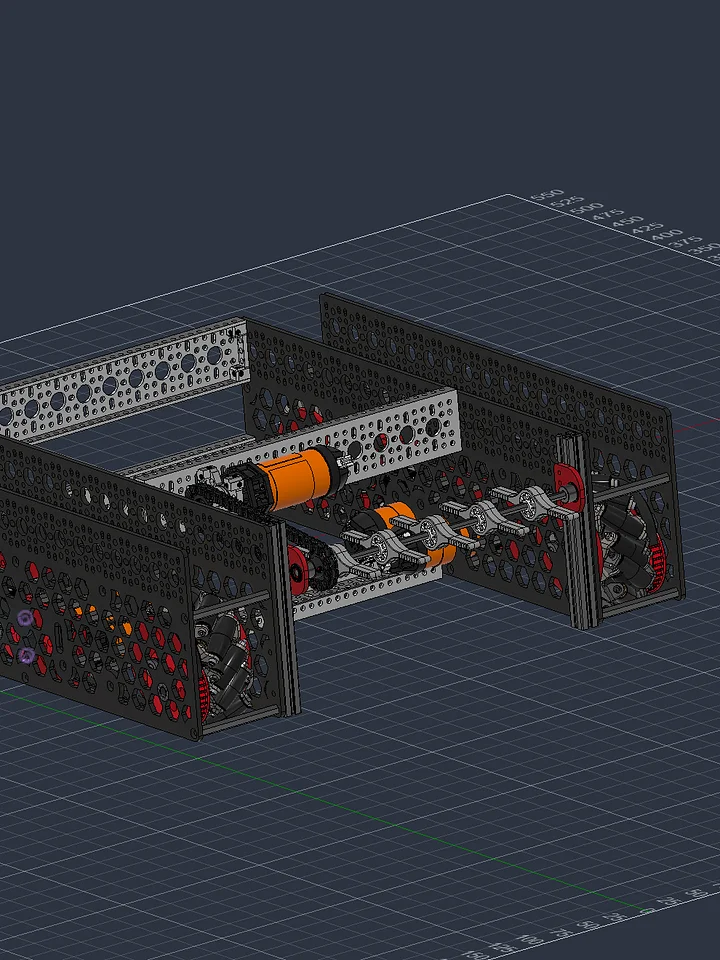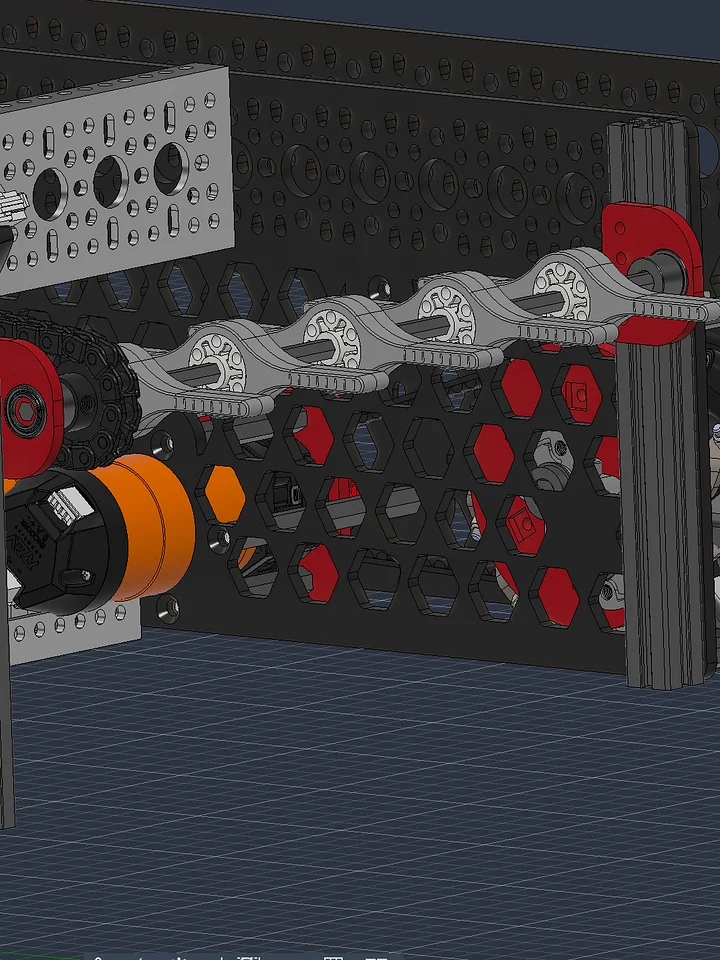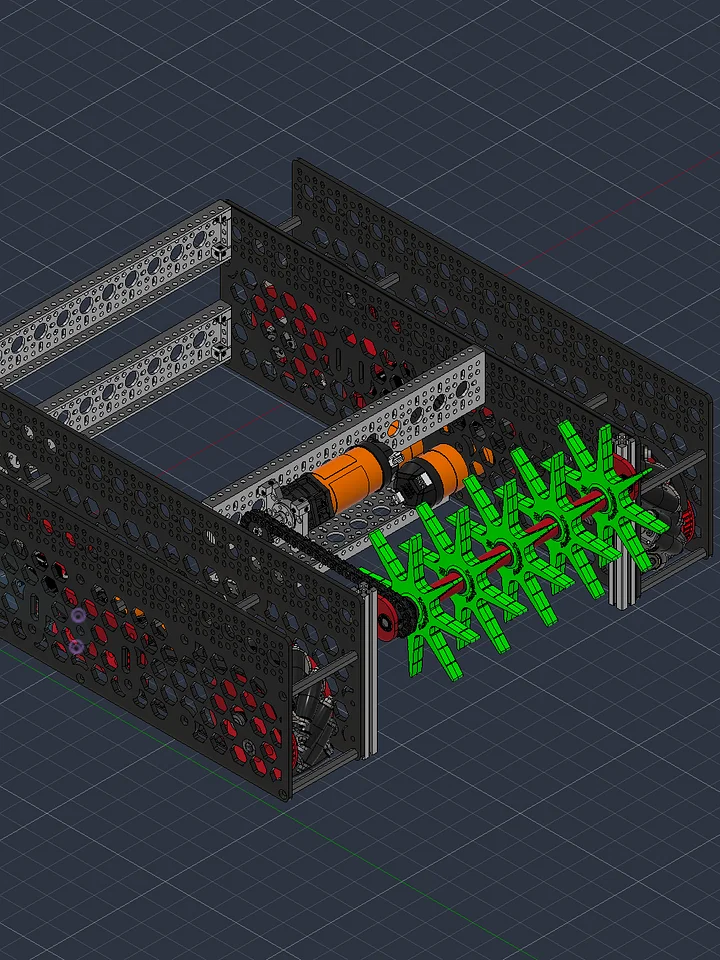
8mm ID Bearing Plate for 15x15 Aluminum Extrusion (REV 15mm / Misumi Series 3)
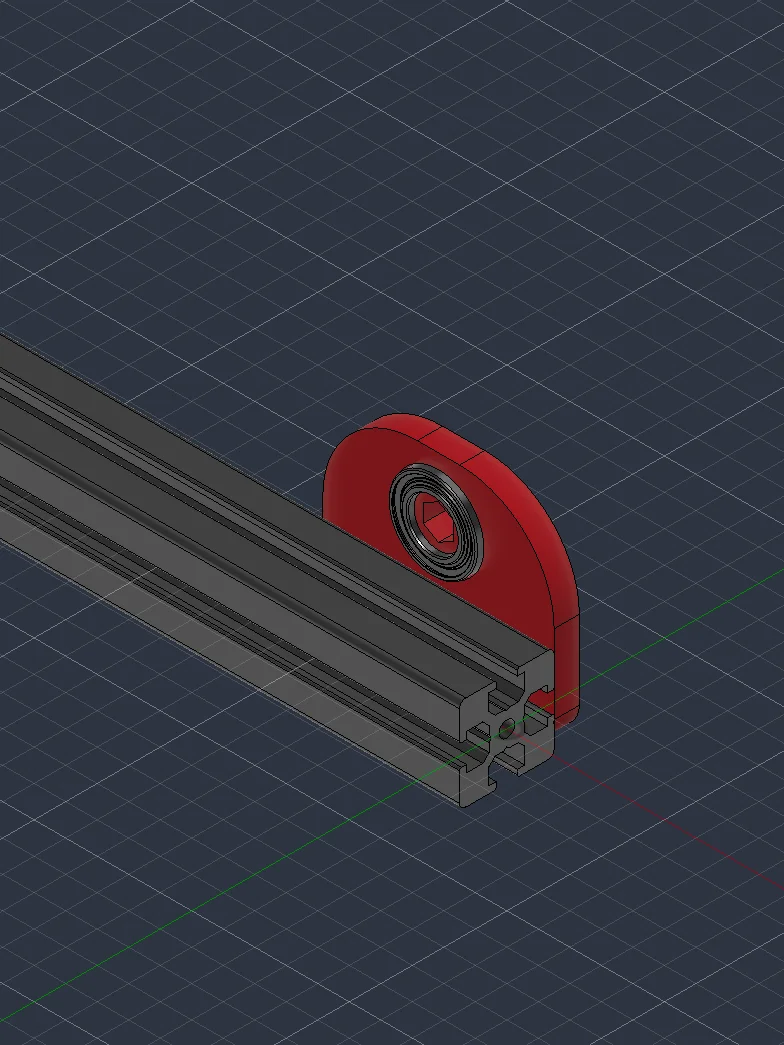
A bolt-on bearing plate that carries an 8mm shaft (7mm hex) on 15x15 aluminum extrusion.
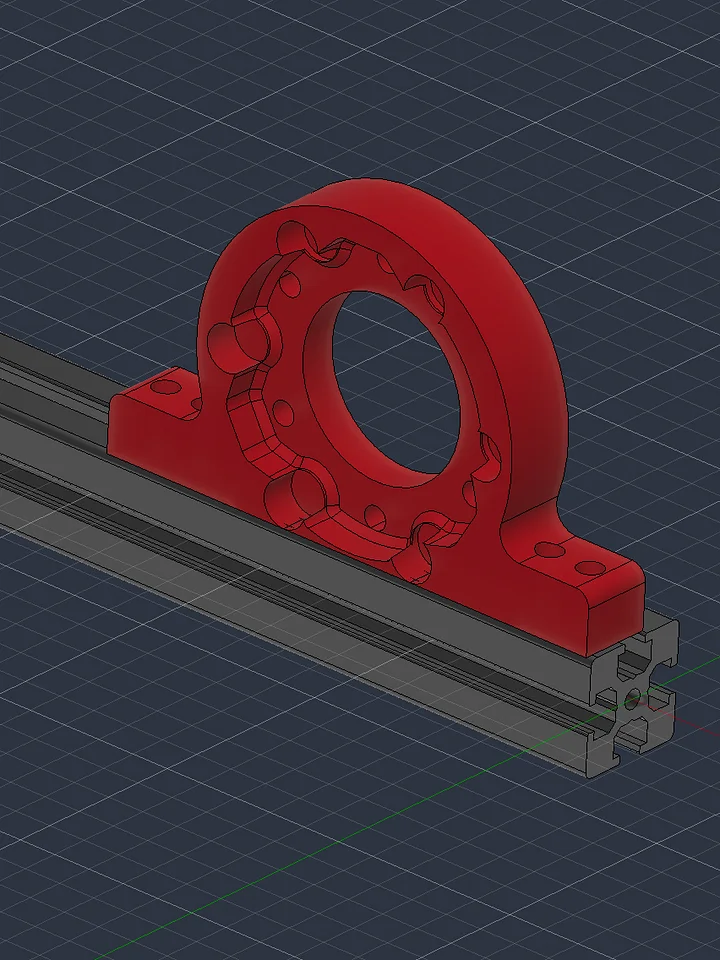
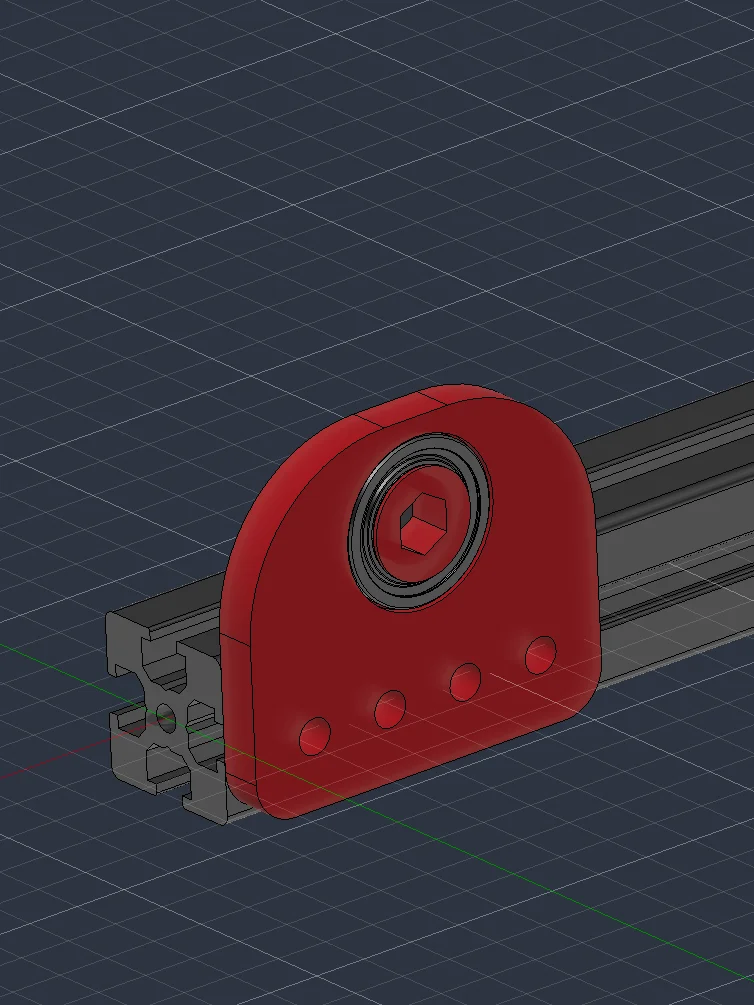
The plate holds an 8mm ID, 14mm OD flanged ball bearing (MF148ZZ or goBILDA 1611 series) and bolts to the side of REV 15mm Extrusion or Misumi HFS3 Series 3 15x15 profile. Four M3 holes on 8mm spacing line up with the extrusion slot, so you can slide the plate along the rail and square up your shaft before you lock it down. The plate is 4mm thick, the same width as an MF148ZZ, so the bearing sits flush with the face.
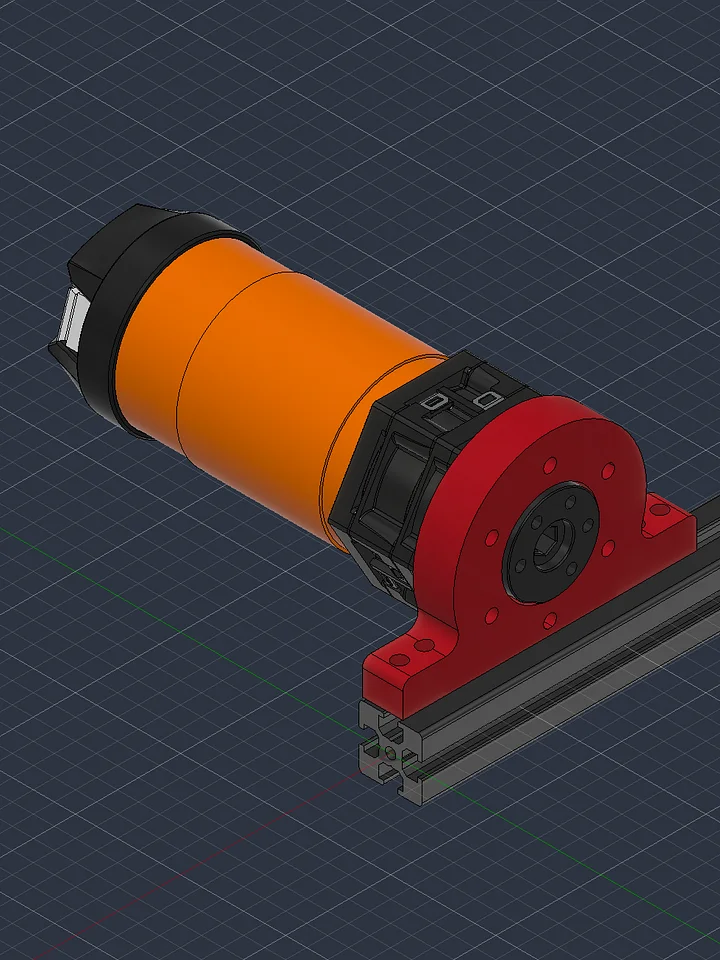
Pair it with my 8mm ID Bearing to 5mm Hex Adapter and a REV 5mm hex shaft runs on standard 8mm bearings.
What's included:
- Editable STEP file
- The 3MF file, ready to slice and print.
Specs:
- Bearing: 8mm ID x 14mm OD flanged (MF148ZZ sits flush; the 5mm thick goBILDA 1611 sits 1mm proud)
- Plate: 36.7 x 31.5 x 4mm
- Mounting: 4x M3 clearance holes on 8mm spacing
- Shaft center: 15.5mm from the bolt line
- Extrusion: REV 15mm Extrusion, Misumi HFS3 Series 3 (15x15mm)
- Fasteners: M3 machine screws & M3 hex nuts in the slot
Accessing STEP Files
STEP files are uploaded in a .zip folder. You must first unzip the folder in order to import the file into your CAD program of choice.
Autodesk Fusion 360
-
After unzipping the downloaded folder, open Fusion 360.
-
Click the "Show Data Panel" icon in the upper-left corner (it looks like a grid/waffle).
-
Navigate to your desired project and folder.
-
Click the "Upload" button.
-
Select the .step or .stp file from your computer and click "Open."
-
Once the upload is complete, the file will appear in your Data Panel, ready to be inserted into your design.
Onshape
-
After unzipping the downloaded folder, log in to your Onshape account.
-
From the "Documents" page, click the "Create" button and select "Import files...".
-
Alternatively, inside an existing document, click the "+" icon in the bottom-left corner and select "Import."
-
Select the .step or .stp file from your computer.
-
Choose your desired import options in the dialog box.
-
The imported file will appear as a new tab in your document.
SolidWorks
-
After unzipping the downloaded folder, open SolidWorks.
-
Go to "File" > "Open."
-
In the "Open" dialog box, change the file type to "STEP files (*.step, *.stp)."
-
Navigate to and select the STEP file you wish to import.
-
Click "Open."
-
SolidWorks may prompt you to run "Import Diagnostics" to check for and fix any potential issues with the imported geometry. It is recommended to do so.
3D Printing Tips
If the design includes 3D printed parts, I highly recommend you print the part out of PCTG. It has some of the highest impact resistance and non-catastrophic breaking for robot parts.
For Mechanical/structural parts, I recommend:
- 0.6mm Nozzles over 0.4mm. Wider nozzles produce stronger prints in shorter periods of time over thinner nozzles.
- Minimum 4 walls.
- 30-40% gyroid infill